
What's new in GoVisually: autumn 2026
This autumn's GoVisually updates, grouped by the job they help with: review and sign-off, checking artwork against the spec, staying organised and sharing finished work.
What's new in GoVisually this autumn? Between September and November 2026, GoVisually added Gia Spotlight, Batched review, Product Hub, a Files tab and team Library, Project Groups, a clearer Bird's Eye, Showcase pages, multi-stage review workflows and photo-to-proof compare. It also passed a SOC 2 Type II audit. This guide groups them by the job they help with.
Release notes tell you what shipped. This post tells you what each update is for. Every item has the same shape:
- what it is
- the problem it fixes
- how to use it
- a link to the full release note
Some features are on selected plans or rolling out team by team. We say which ones.
The autumn updates at a glance
| Update | The job it helps with | Where to find it | Who gets it |
|---|---|---|---|
| Batched review | Review and sign-off | Comment box on any proof | Turned on per team |
| Gia Spotlight | Review and sign-off | Ask Gia, review toolbar | Teams with GoVisually AI |
| Multi-stage review workflows | Review and sign-off | Workflows, sidebar | Custom plans |
| Product Hub | Checking artwork against the spec | Product Hub, sidebar | Selected plans |
| Compare with a printed pack photo | Checking artwork against the spec | AI Smart Compare | Selected plans |
| Files tab and team Library | Keeping work organised | Files tab; Team settings | Rolling out |
| Project Groups | Keeping work organised | Project sidebar | Teams |
| Bird's Eye counts | Keeping work organised | Bird's Eye, left menu | Team admins |
| Showcase pages | Sharing finished work | Proofs tab selection bar | Rolling out gradually |
| SOC 2 Type II | Passing security review | On request | Everyone |
Review and sign-off
Most packaging delays happen here. Feedback arrives in pieces, people get pinged too often, and nobody's sure who signs off next.
Batched review
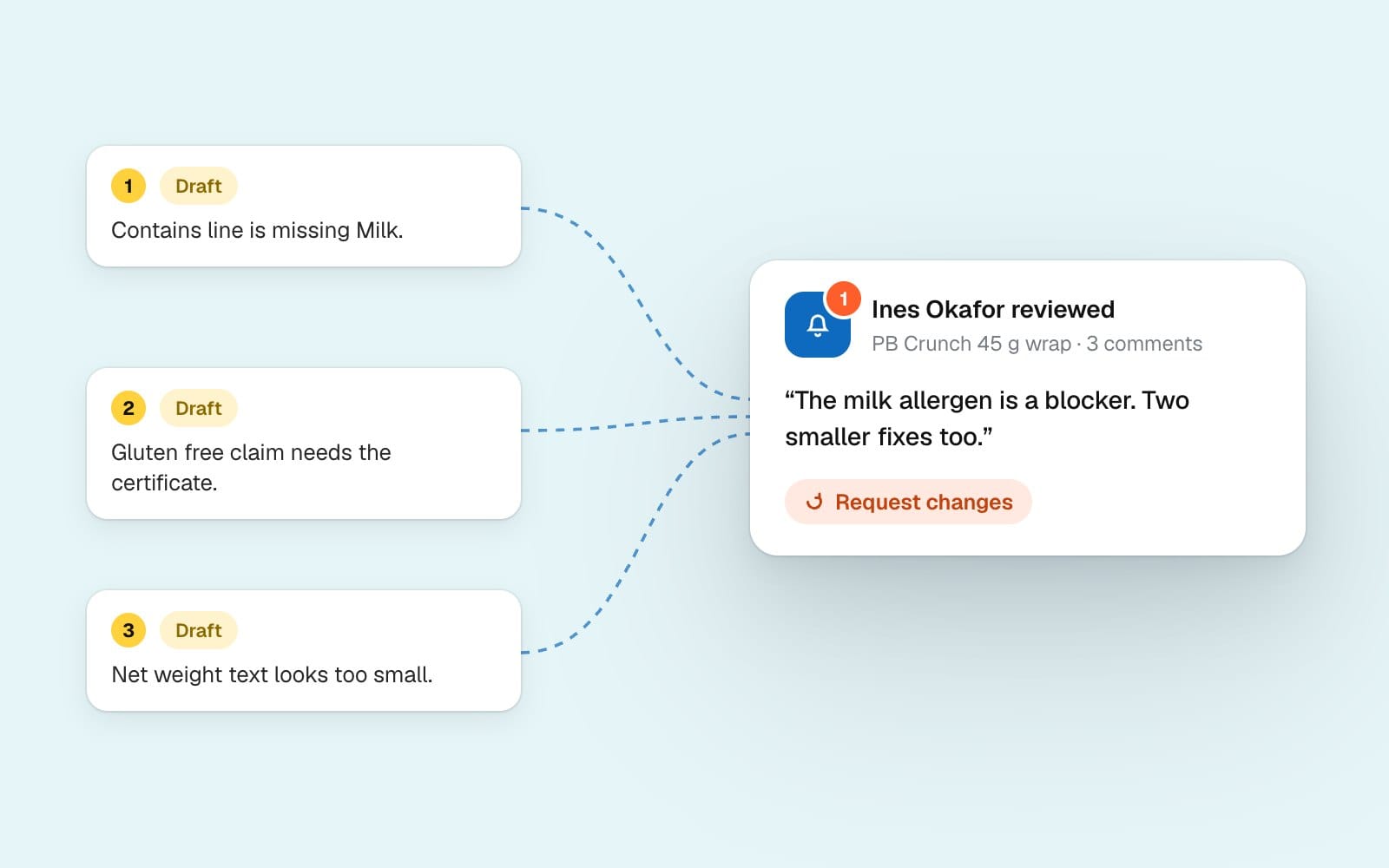
What it is: a way to write several comments on a proof, then send them together as one review.
The problem it fixes: every comment used to send its own notification, so a ten-comment pass meant ten pings.
How to use it:
- Write a comment on the proof and click Save & add more. It's saved as a draft. No one is notified yet.
- Keep going. Your drafts collect under Your pending review in the Comments tab. Only you can see them.
- Click Submit review. Add an optional summary and pick a verdict: Comment, Approve or Request changes.
- Publish. Your team gets one notification for the whole review, not one per comment.
Need to flag something right away? Post still sends a single comment straight away. Batched review is turned on team by team. If you don't see Save & add more, ask our support team.
Gia Spotlight
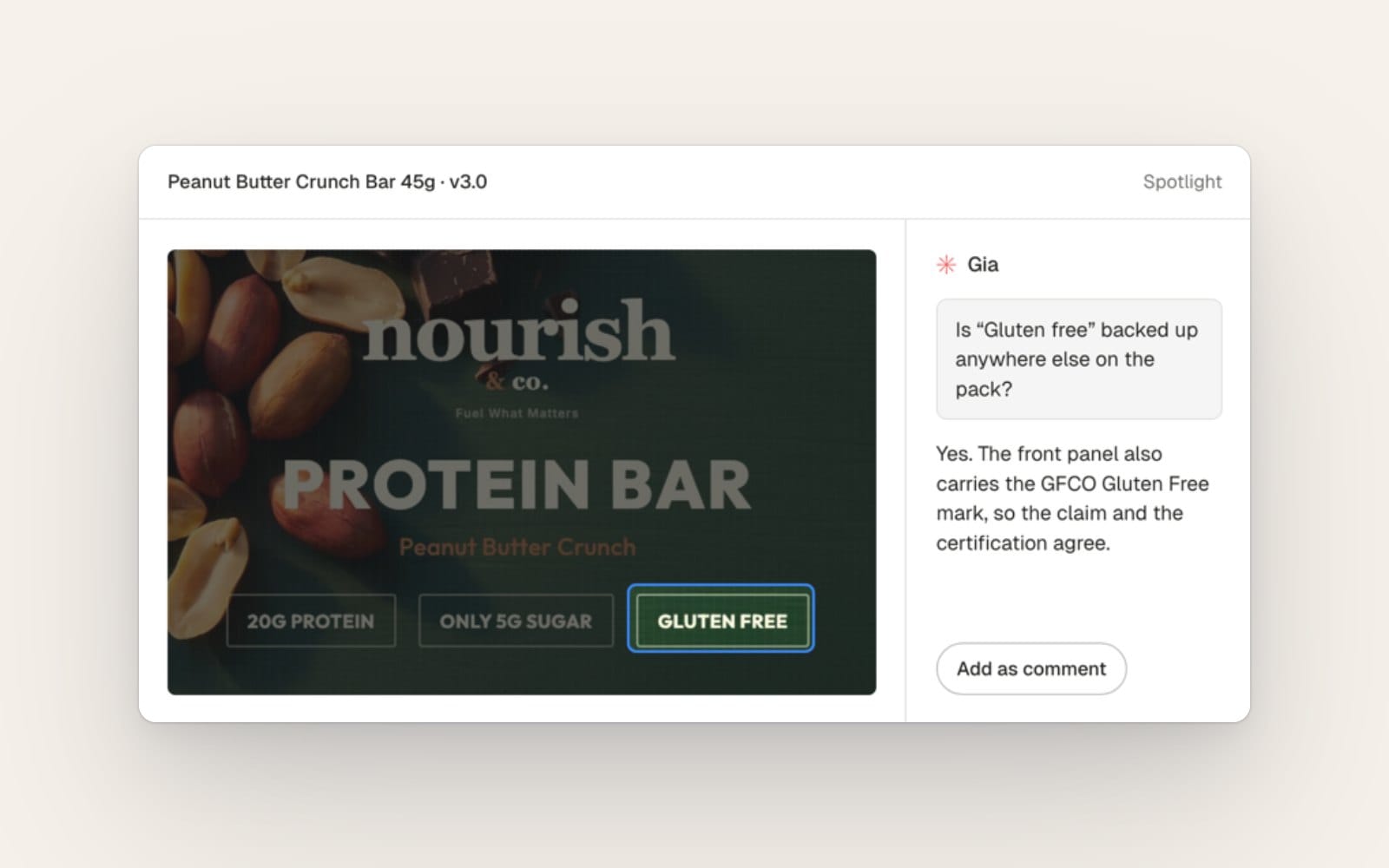
What it is: point at a line of text or an area of a proof, then ask Gia, the assistant in our Intelligence Engine, about just that part.
The problem it fixes: asking about one claim or one corner of a pack used to mean describing it in words.
How to use it:
- Open a proof and click Ask Gia in the review toolbar.
- Pick Text or Area, then select the line or draw a box. The rest of the proof dims.
- Ask your question. Type / to bring one of your team's agents into it.
- If the answer is useful, choose Add as comment. Edit it, then post it like any other comment.
Gia never posts on its own. Treat each answer as something to check, and you make the call. Comments that started in Gia are marked, so reviewers can tell them apart. Read the Gia Spotlight release note.
Multi-stage review workflows
Brand, then regulatory, then QA: workflows build that order into GoVisually. Each stage has its own reviewers, deadlines and checklists. Proofs move on when a stage is done, and every sign-off is recorded in an exportable decision log. They're on custom plans. We cover them in depth in our guide to packaging artwork approval workflows, or see the release note.
Checking artwork against the spec
An approved spec is only useful if the artwork matches it. These two updates close the gap at both ends: before print and after.
Product Hub
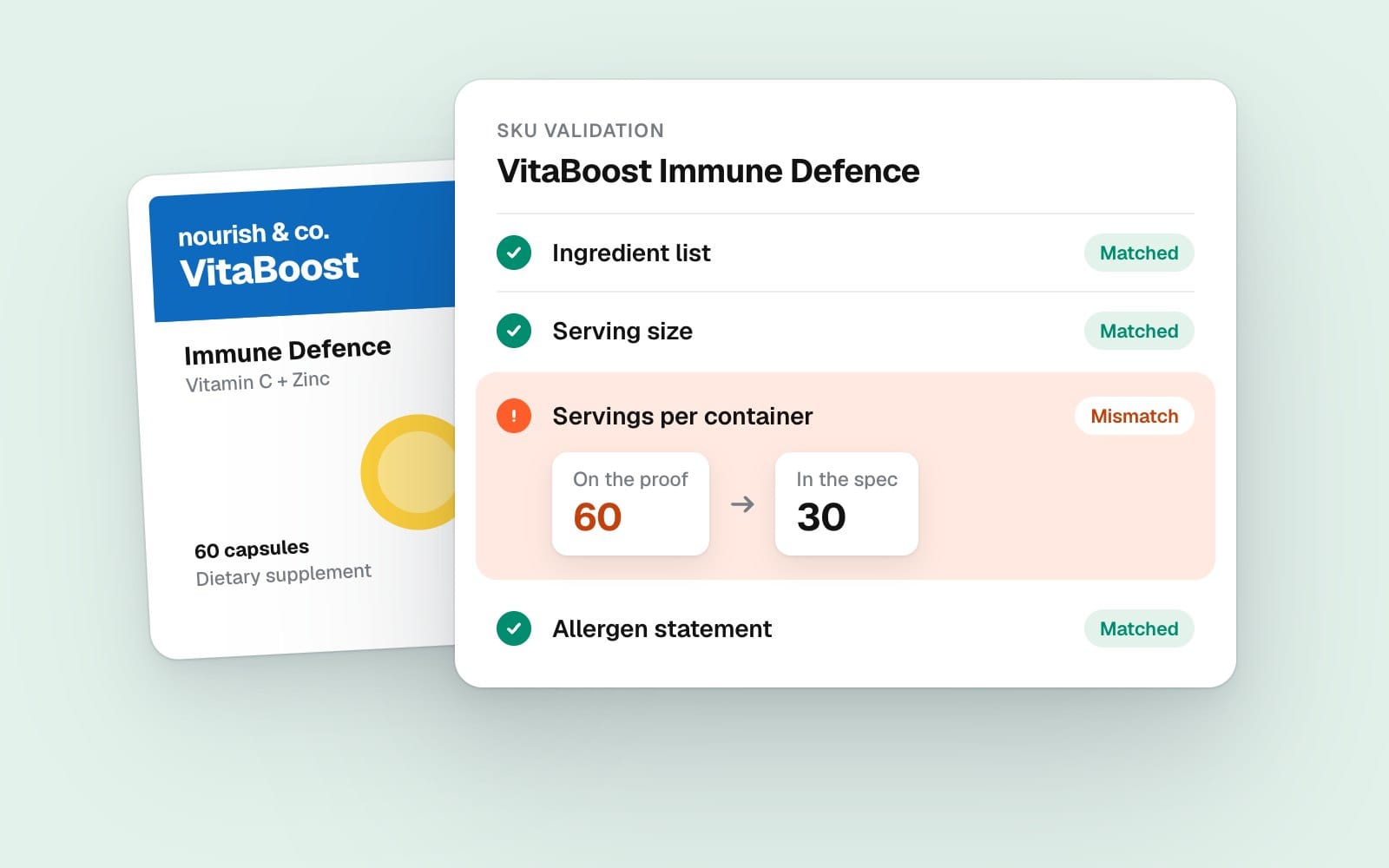
What it is: one place for the approved spec of every SKU, and a check of each proof against it.
The problem it fixes: specs live in spreadsheets and email, so reviewers cross-check net weight, servings and ingredients by hand.
How to use it:
- Open Product Hub and add a brand, then a product. Add options to a product to create its SKUs.
- Fill in each SKU's packaging spec, such as net weight, ingredients, allergens and the nutrition panel.
- Change approved data through a change request. Nothing changes in the hub until a request is reviewed and merged, and old values stay readable in history.
- On a proof, open the AI tab, choose SKU validation, pick the SKU and click Check against the spec.
Each field comes back as matched, mismatched or missing. Open a mismatch to see what the proof says next to the spec. Then decide: fix the artwork or update the spec. A match only means the artwork agrees with the spec. It doesn't mean the claim is compliant, so keep your regulatory review. Product Hub is on selected plans; book a demo to see it on your own SKUs.
Compare a proof with a photo of the printed pack
The printed sample arrives, and someone has to check it against the approved artwork. AI Smart Compare (AI Compare in the app) can now line up a photo of the printed pack with the proof and list what changed. It also compares JPG, PNG and TIFF files. It's on selected plans. Our printed pack check guide walks through it, or see the release note.
Keeping work organised
A launch has more than proofs. It has source files, related projects and a team lead who needs the full picture.
Files tab and team Library
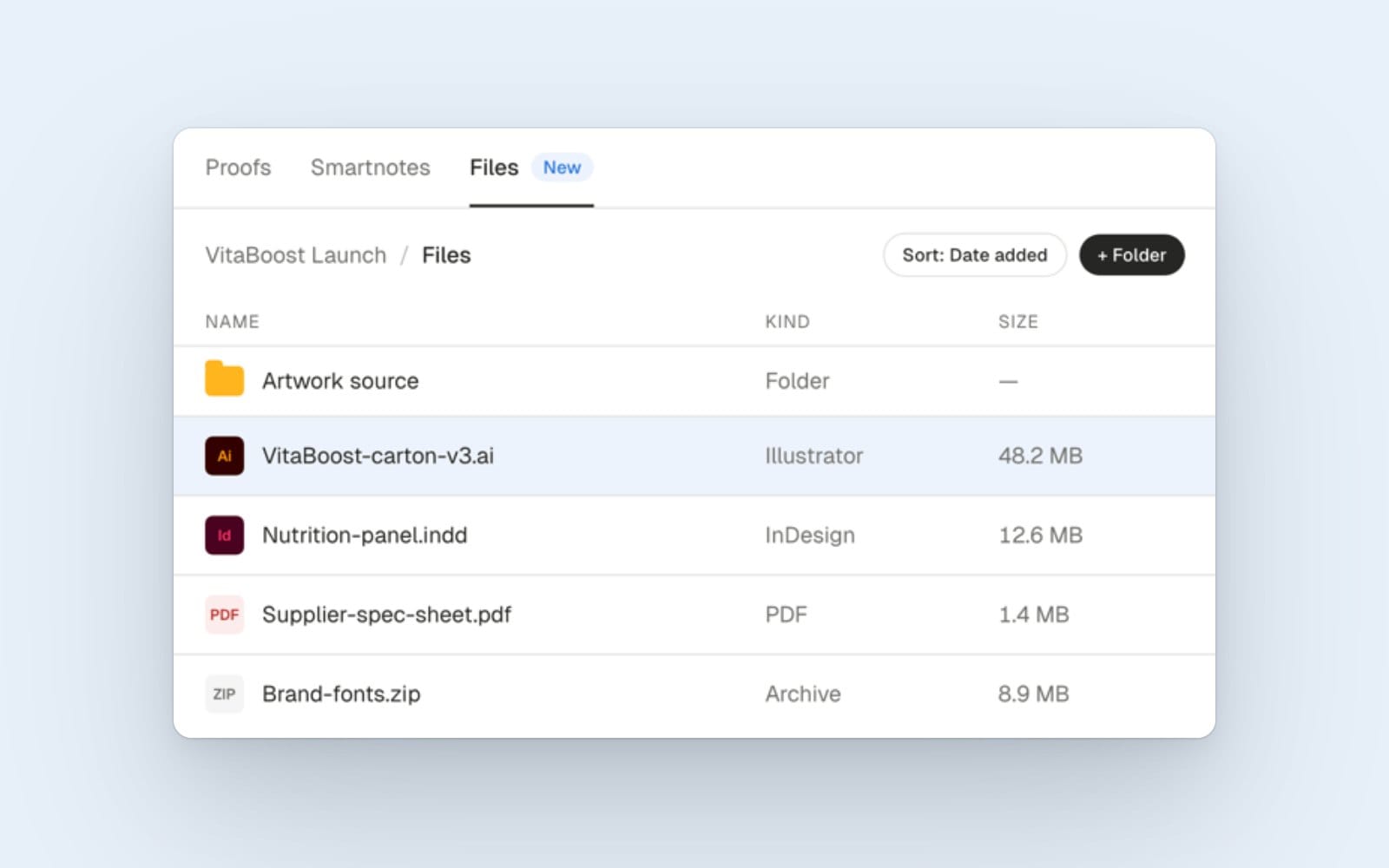
What it is: a Files tab on every project, plus a shared Library for files the whole team reuses.
The problem it fixes: source artwork, fonts and supplier spec sheets end up scattered across email and shared drives.
How to use it:
- Open a project and click Files. Upload Illustrator, Photoshop, InDesign, Word, Excel, archives and more.
- Make folders, then rename, move and sort by name, kind, date added or size.
- Click a file to preview its size, dimensions, resolution, page count, colour profile and who uploaded it.
- Team admins find the Library under Team settings → Library. Put logos, templates and brand guidelines there.
Files is rolling out gradually. Read the Files release note.
Project Groups
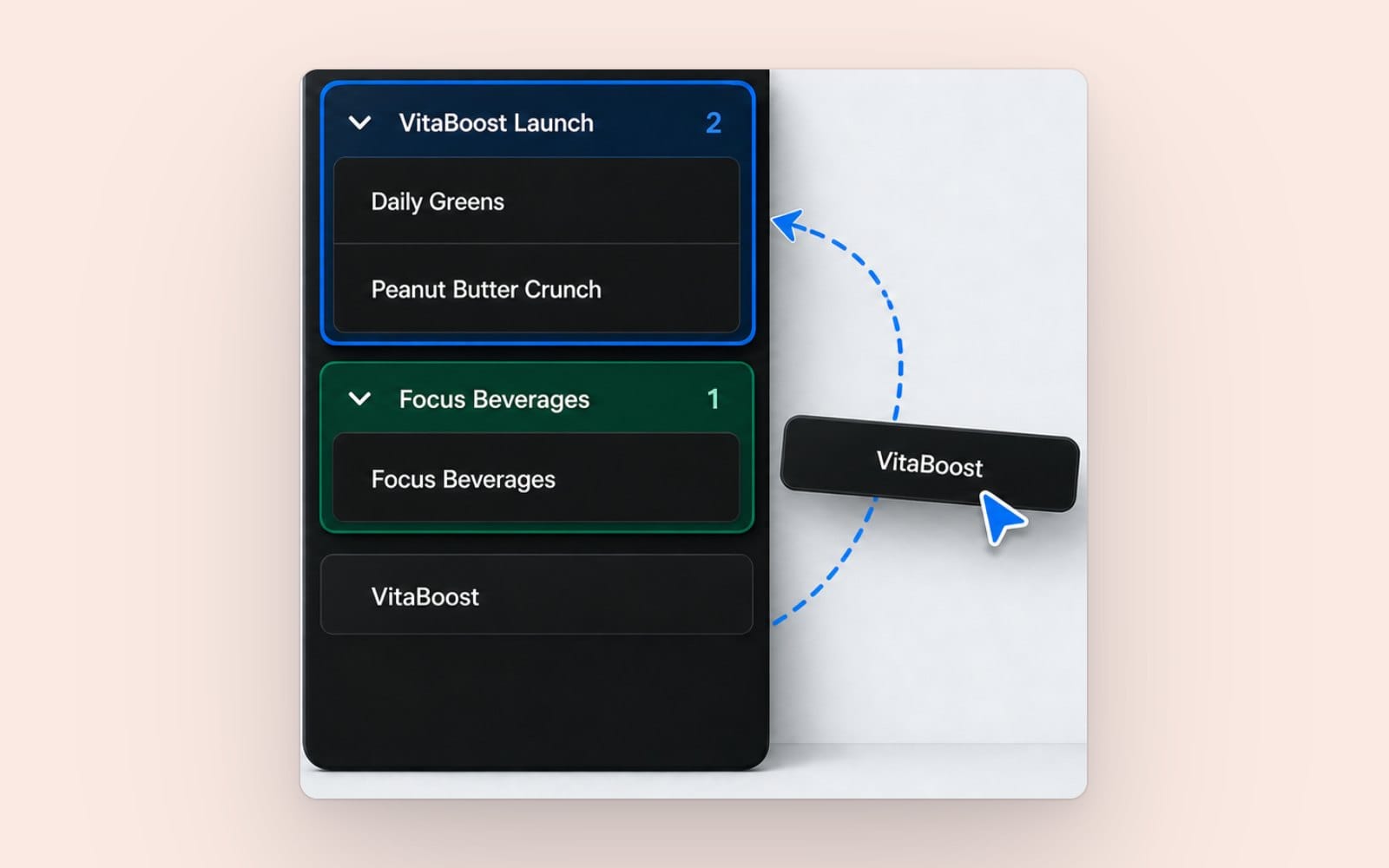
What it is: named, coloured groups that sort related projects in the sidebar.
The problem it fixes: a long, flat project list makes the launch you need hard to find.
How to use it:
- Right-click a project in the sidebar and choose Move to group → New group.
- Give the group a name, colour and icon.
- Drag in the related projects.
Groups are only for organising. Moving a project never changes who can access it, and deleting a group never deletes its projects. Read the Project Groups release note.
Bird's Eye counts that match your filters
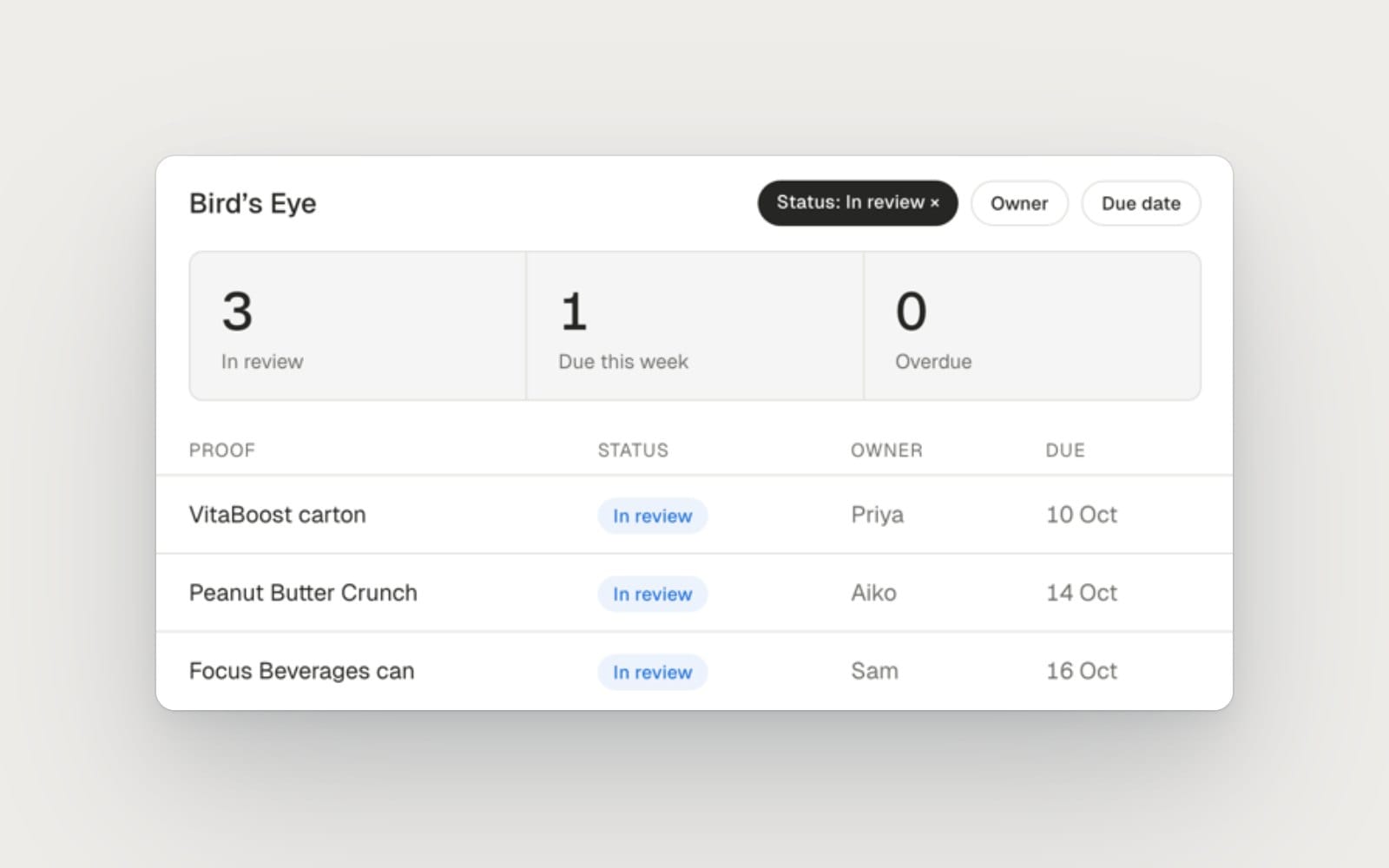
What it is: a redesigned Bird's Eye, the team admin view of every proof across the team.
The problem it fixes: the summary totals didn't always agree with the filtered list below them.
How to use it:
- Click Bird's Eye in the left-hand menu.
- Filter by status, owner or due date. The summary counts update to match the table.
- On a phone, scroll the table sideways to see every column.
Read the Bird's Eye release note.
Sharing finished work and passing security review
Showcase pages
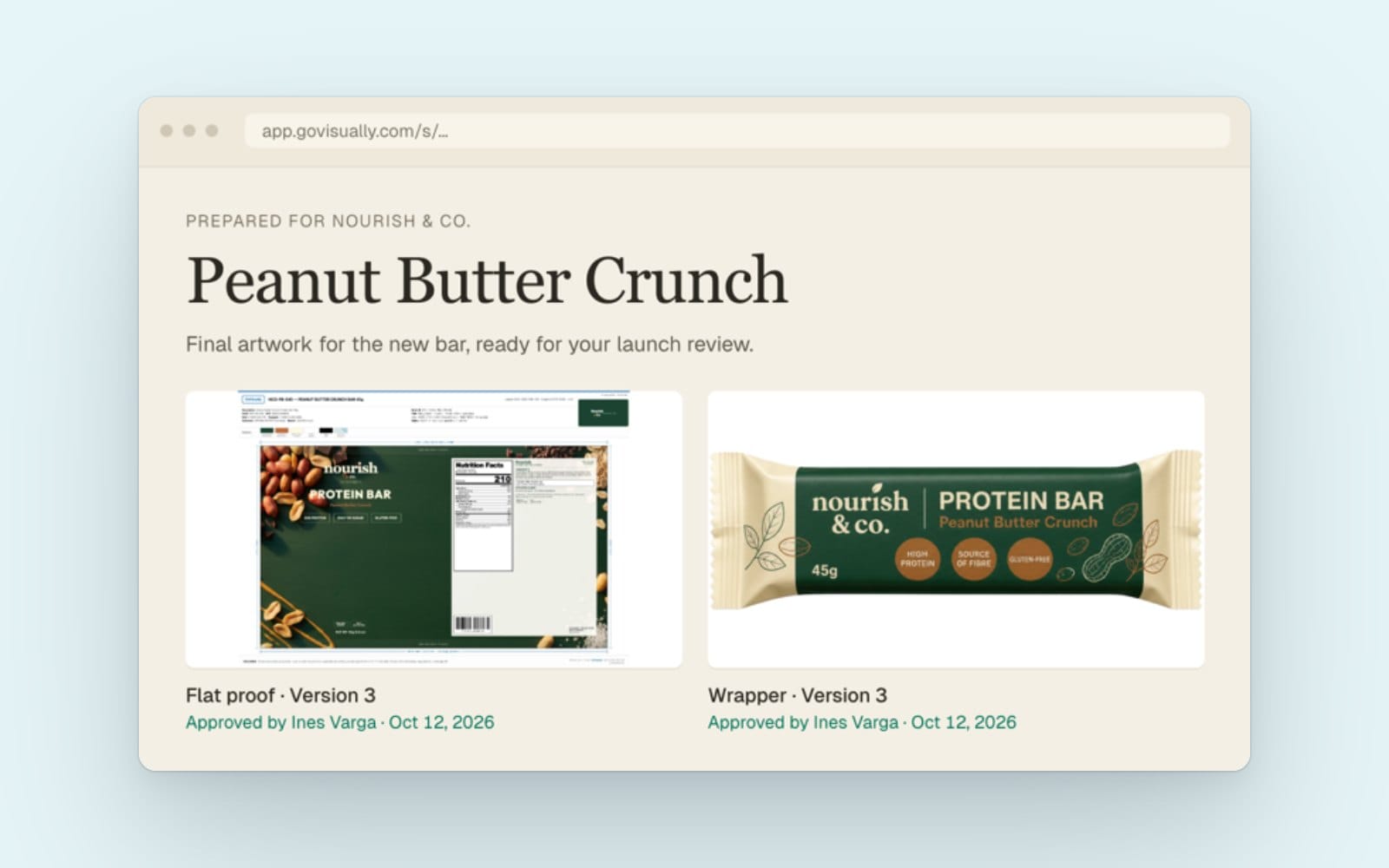
What it is: a branded web page made from the proofs you pick, sent as one link.
The problem it fixes: finished work reaches clients as email attachments, with nothing to show which version is final or who signed it off.
How to use it:
- Open a team project and select your proofs on the Proofs tab.
- Click Showcase in the selection bar.
- Fill in the Details, Appearance and Access tabs. You can show who approved each proof, and add a password or expiry date.
- Click Create showcase, then send the link. Your client opens it without a GoVisually account.
Showcase pages are for viewing, so keep using proof reviews for feedback and sign-off. Showcase is rolling out gradually. Read the Showcase release note.
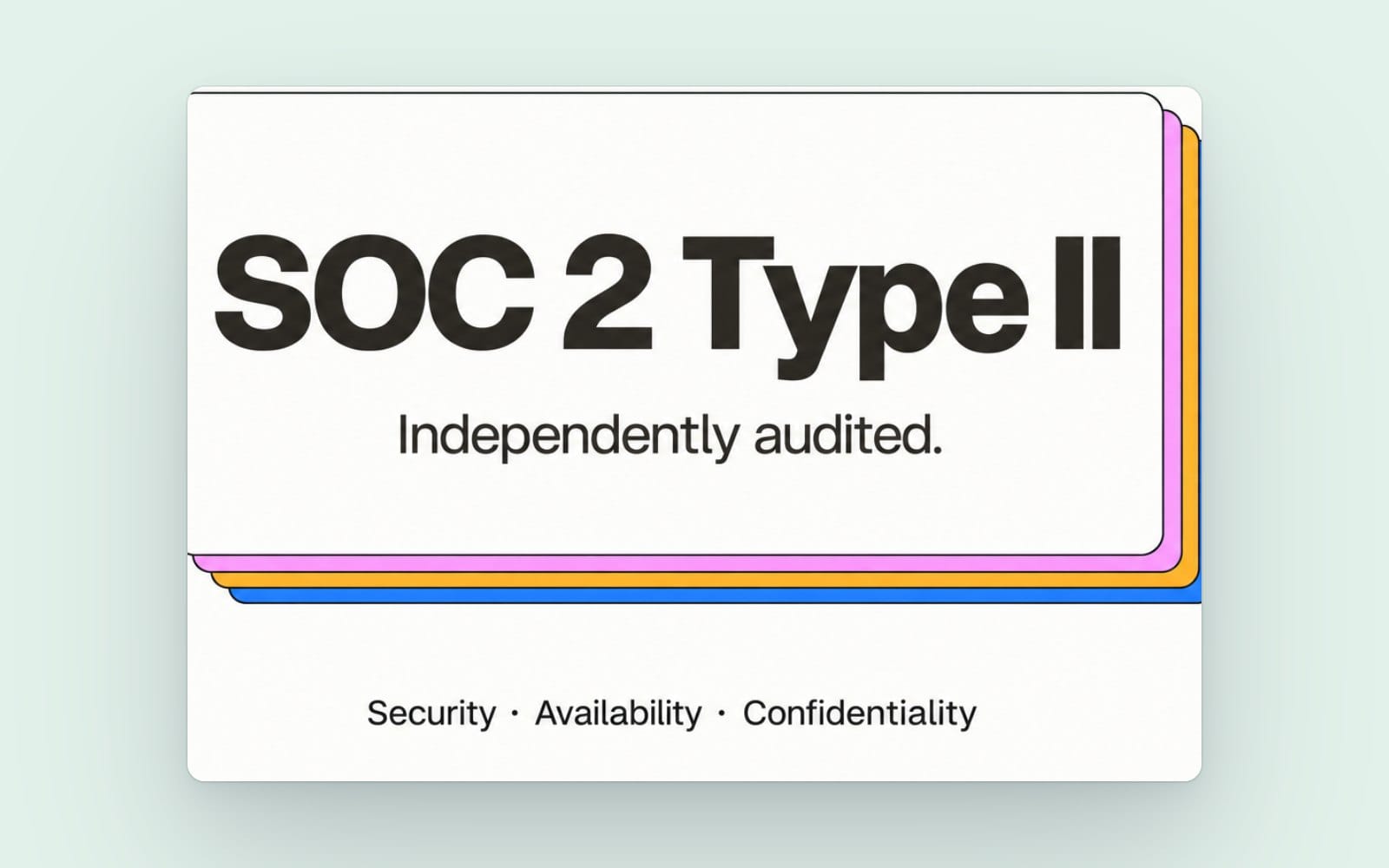
SOC 2 Type II
What it is: an independent audit of our Security, Availability and Confidentiality controls, including how they worked over three months.
The problem it fixes: IT and procurement teams need evidence before they approve a new vendor.
How to use it:
- Point your IT team to our security page.
- If they need the report itself, contact us to request access.
Smaller improvements worth knowing
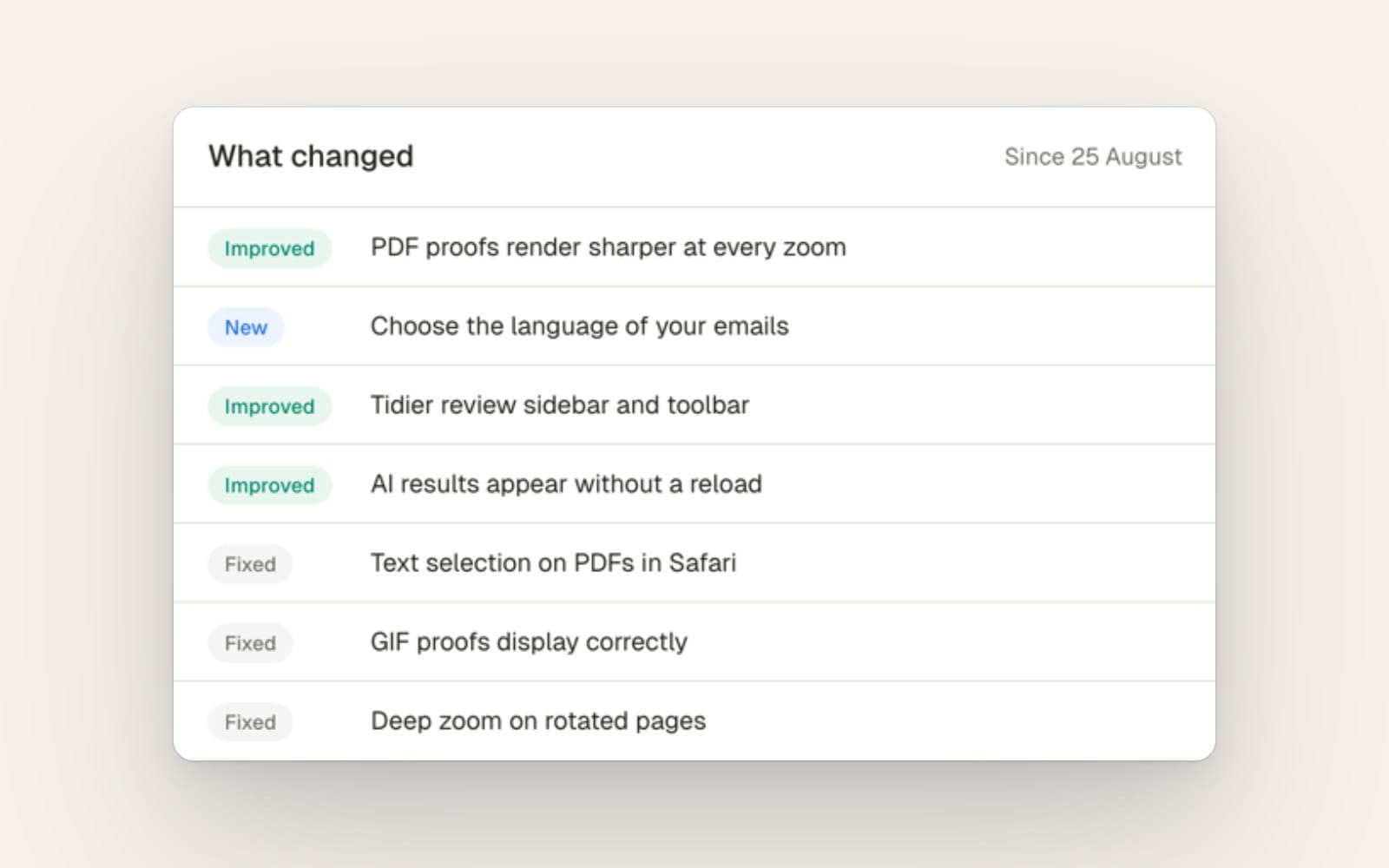
What it is: a round of fixes and polish from October.
The problem it fixes: the small things that slow a review down.
The ones packaging teams will notice most:
- Sharper PDFs. PDF proofs render in your browser, so small print stays crisp at every zoom.
- Email language. Pick English or French in your notification settings. Admins can set a team default.
- Print readiness. The panel is easier to scan, and it now shows Lab values for spot colours defined in Lab.
- Intelligence Engine findings. Playbook results appear without a reload, and placing a finding zooms to frame it.
- Fixes. Text selection on PDFs works in Safari, GIF proofs display, and deep zoom works on rotated pages.
Want to check a file before it even reaches review? Try our free PDF preflight tool. Read the full October release note.
Where to start
Pick the update that matches your biggest delay:
- Too many pings during review? Turn on Batched review.
- Specs in spreadsheets? Look at Product Hub.
- Files all over the place? Use the Files tab and Project Groups.
- Clients asking which version is final? Send a Showcase page.
For the bigger picture of how artwork, specs and approvals fit together, see our artwork management software page.
Frequently asked questions
What is GoVisually Gia?
Gia is the assistant in GoVisually's Intelligence Engine. You can ask it about a proof, and with Gia Spotlight you can select one line of text or one area and ask about just that. Gia never posts on its own. You decide whether its answer becomes a comment.
What is GoVisually Product Hub?
Product Hub holds the approved spec for every SKU. Edits to approved data go through change requests, and history is kept. On a proof, SKU validation checks the artwork against the SKU's spec and marks each field matched, mismatched or missing. It's on selected plans.
Where can I store packaging artwork files in GoVisually?
Use the Files tab on each project for working files like Illustrator, InDesign and supplier PDFs. Use the team Library for files everyone reuses, like logos, templates and brand guidelines. Files is rolling out gradually.
How do I send several review comments at once?
With Batched review, click Save & add more instead of Post. Your drafts stay private. When you're done, click Submit review, add a summary and a verdict, and your team gets one notification.
Can clients see approved artwork without a GoVisually account?
Yes, with a Showcase page. You pick the proofs, style the page and send one link. It's for viewing, so feedback and sign-off still happen in proof review. Showcase is rolling out gradually.
Is GoVisually SOC 2 compliant?
GoVisually is SOC 2 Type II attested. An independent audit covered Security, Availability and Confidentiality over a three-month period. Contact us to request the report.
Can I compare artwork with a printed sample?
Yes. In AI Smart Compare, choose A proof against a photo, pick the approved proof and upload a photo of the printed pack. Photos work best flat, evenly lit and with the whole pack in frame.
Want to try these updates on your own packs? Start a free trial of GoVisually.
Disclaimer: This article is general information, not legal or regulatory advice. Rules and product features change, and we can get things wrong. Check the current rules with the relevant regulator or a qualified adviser before you print. Last checked: November 2026.